How to Customize a ForgeWorkflows Blueprint for Your Team
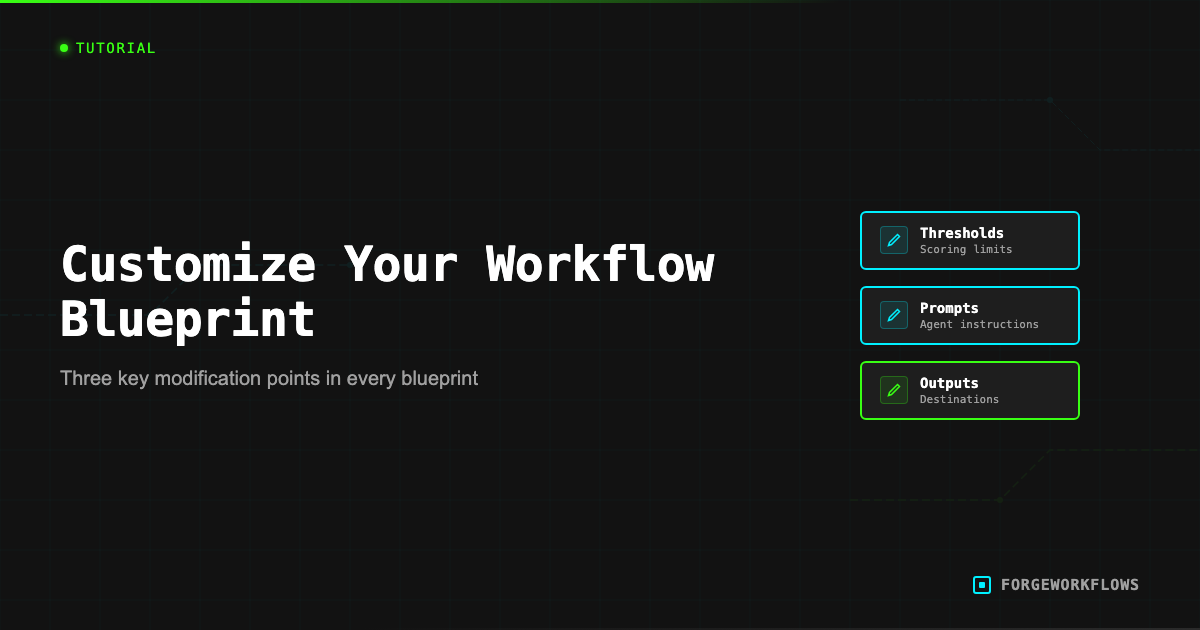
What Is Customizable
Every ForgeWorkflows Blueprint ships as a fully editable n8n workflow. There is no obfuscated code, no compiled binary, and no license server checking your modifications. You own the files, and you can change anything.
That said, some parts of a Blueprint are designed to be changed, and others are structural load-bearing elements that should only be modified if you understand the downstream impact. Here is how to think about it:
- Safe to change (designed for it): scoring thresholds, system prompt text, output destination nodes, schedule trigger timing, notification message templates, field mappings to your CRM.
- Change with care: agent routing logic (if/else branches), input/output schemas between agents, error handling paths. These affect the pipeline contract between agents.
- Avoid changing unless rebuilding: the overall pipeline architecture (agent order, number of agents, handoff structure). The BQS and ITP certifications are based on the shipped architecture.
The sections below focus on the most common customizations - the ones that nearly every team makes within the first week of deployment.
Blueprint modifications do not void your purchase. You own the files. However, BQS and ITP certifications reflect the as-shipped configuration. Significant structural changes mean you are responsible for your own testing.
Changing Scoring Thresholds
Many Blueprints include scoring logic: a lead score, a risk score, a sentiment score, or a quality score. These scores drive routing decisions - for example, "if lead score > 70, route to the fast-track sequence."
To adjust a scoring threshold:
- Open the workflow in n8n and find the IF or Switch node that uses the score. It is usually named something like "Score Router" or "Threshold Gate."
- Click the node to open its configuration.
- Change the threshold value. For example, change
score > 70toscore > 60to be more permissive, orscore > 85to be more selective. - Save the node.
Before changing thresholds in production, run a batch of test records through the workflow manually and compare results at the old and new thresholds. This gives you a concrete sense of how many records shift between routing paths. If your Inbound Lead Qualifier is routing too few leads to the fast track, lowering the threshold from 70 to 60 might increase volume by 30-40% - but it also means more false positives reach your SDRs.
The ITP test fixtures included in your bundle show the expected scores for each test record. Use these as a baseline to calibrate your threshold changes.
Run test records through both the old and new thresholds before changing production. The ITP test fixtures in your bundle provide a ready-made test set for this.
Modifying System Prompts
Agent prompts are the instructions that tell each reasoning-grade LLM node what to do. They define the agent personality, scoring criteria, output format, and edge case handling. In a ForgeWorkflows Blueprint, prompts are stored as separate .txt files in the prompts/ directory of your bundle, and they are also embedded in the corresponding n8n agent node.
Common prompt modifications:
- Industry terminology. If your company uses specific terms (e.g., "opportunity" instead of "deal," "prospect" instead of "lead"), update the prompt to use your vocabulary. This improves output relevance and makes the results feel native to your team.
- Scoring criteria weighting. If the prompt assigns equal weight to 5 scoring factors, you might increase the weight of the factor most important to your business. For example, in a Deal Stall Diagnoser, you might weight "days since last activity" higher than "deal size."
- Output format. If the prompt instructs the agent to output a Markdown summary, you might change it to output JSON, or add fields your team needs, or remove fields you do not use.
- Tone and style. Some teams prefer terse, data-dense output. Others prefer narrative summaries. Adjust the prompt instructions accordingly.
To apply a prompt change: edit the text in the n8n agent node directly, or edit the .txt file and paste the updated text into the node. Keep backups of the original prompts so you can revert if a change produces unexpected results.
Prompt changes take effect immediately on the next execution - no restart or redeployment needed.
Adding Output Destinations
Blueprints ship with default output destinations: a Slack message, a CRM field update, an email notification, or a structured JSON output. Most teams want to add additional destinations - for example, sending a copy to a Google Sheet for reporting, or posting to a second Slack channel for leadership visibility.
To add an output destination:
- Identify the last node in the pipeline (the one that produces the final output).
- Add a new node after it (or in parallel - n8n supports branching).
- Configure the new node with the appropriate credentials and field mappings.
- Connect the output of the existing final node to your new node.
Common additions:
- Google Sheets: Add a Google Sheets node that appends a row for each execution. Useful for building a historical log or a reporting dashboard.
- Notion: Add a Notion node that creates a page in a database. Good for teams that run their operations in Notion.
- Webhook: Add an HTTP Request node that POSTs the output to your own API endpoint. This is the most flexible option for custom integrations.
- Second Slack Channel: Duplicate the existing Slack node, change the channel ID, and optionally modify the message template for a different audience (e.g., a leadership summary vs. a detailed team notification).
Adding output destinations does not affect the upstream pipeline. The scoring, analysis, and routing logic remain unchanged. You are simply tapping into the output at the end of the chain.
Add output destinations in parallel (branching), not in series. This way, if your Google Sheets node fails, it does not block the Slack notification from sending.
Adjusting Schedule Triggers
Most Blueprints ship with a schedule trigger (also called a cron trigger) that fires on a preset interval - typically daily or weekly. Adjusting this is one of the simplest and most common customizations.
To change the schedule:
- Click the trigger node (usually the leftmost node on the canvas, labeled "Schedule Trigger" or "Cron").
- Change the cron expression or use n8n built-in schedule options (every N hours, specific days of the week, specific times).
- Save the node and ensure the workflow is active.
Schedule considerations:
- Frequency vs. cost. Running a Blueprint hourly instead of daily multiplies your Anthropic API cost by the corresponding factor. A Blueprint that costs $0.05/run and runs daily costs $1.50/month. Running it hourly costs $36/month. Make sure the business value justifies the frequency.
- Timezone. n8n schedule triggers use the timezone configured in your n8n instance settings. Verify this matches your team timezone, especially if you want reports to arrive before morning standup.
- Rate limits. Running too frequently may hit API rate limits on your integrations (HubSpot, Pipedrive, Slack). The Blueprint README notes any known rate limit constraints.
Some Blueprints use webhook triggers instead of schedules - these fire when an external event occurs (e.g., a new form submission, a deal stage change). Webhook-triggered Blueprints are event-driven and do not need schedule configuration.
When NOT to Customize
Not every modification is a good idea. Here are situations where you should run the Blueprint as-shipped:
- First week of deployment. Run the Blueprint with default settings for at least one week (or ~20 executions) before changing anything. This gives you a baseline to compare against and helps you understand the default behavior before you start tuning.
- Structural agent changes. Removing an agent from the pipeline, changing the order of agents, or merging two agents into one breaks the tested pipeline contract. The BQS and ITP certifications cover the shipped architecture. If you restructure, you are building a new workflow and should test it as such.
- Schema changes without downstream updates. If Agent A outputs a 5-field JSON and Agent B expects those 5 fields, changing Agent A output format without updating Agent B input expectations will cause failures. Always trace the full data flow before changing schemas.
- Prompt changes that remove guardrails. Blueprint prompts include specific instructions for handling edge cases, low-confidence scores, and malformed input. Removing these guardrails to "simplify" the prompt often leads to silent failures on edge cases that the original prompt handled correctly.
The principle: customize what you understand, leave what you do not. Every Blueprint includes enough documentation to understand the full pipeline, but read it before you start editing. The BQS methodology page explains what the quality standard covers, so you know exactly which guarantees apply to the shipped configuration.
Run the Blueprint as-shipped for at least one week before customizing. You need a behavioral baseline to evaluate whether your changes actually improve results.
Related
Frequently Asked Questions
What parts of a ForgeWorkflows blueprint can I customize?+
Scoring thresholds, system prompts, output destinations, schedule triggers, and routing rules are all exposed as configurable parameters. You modify these directly in the n8n editor without touching the underlying workflow logic.
Will customizing a blueprint break the original logic?+
No. The core agent logic and error handling are isolated from configurable parameters. Adjusting a scoring threshold or changing an output channel does not affect the reasoning pipeline. If something goes wrong, you can re-import the original JSON.
How do I know which values to change for my use case?+
Each blueprint includes a customization section in the README that lists every adjustable parameter, its default value, and guidance on how to tune it for different team sizes, deal volumes, or CRM configurations.